
How do I play ASL Practice Session videos on my TV?
Best option: Send the video directly from the ASL video player instead of mirroring your entire phone or computer screen.
You can send an ASL Practice Session video directly from the app to a compatible TV or streaming device.
This is especially helpful if your family wants to watch the signer on a larger screen while practicing together.
How to send the video to your TV
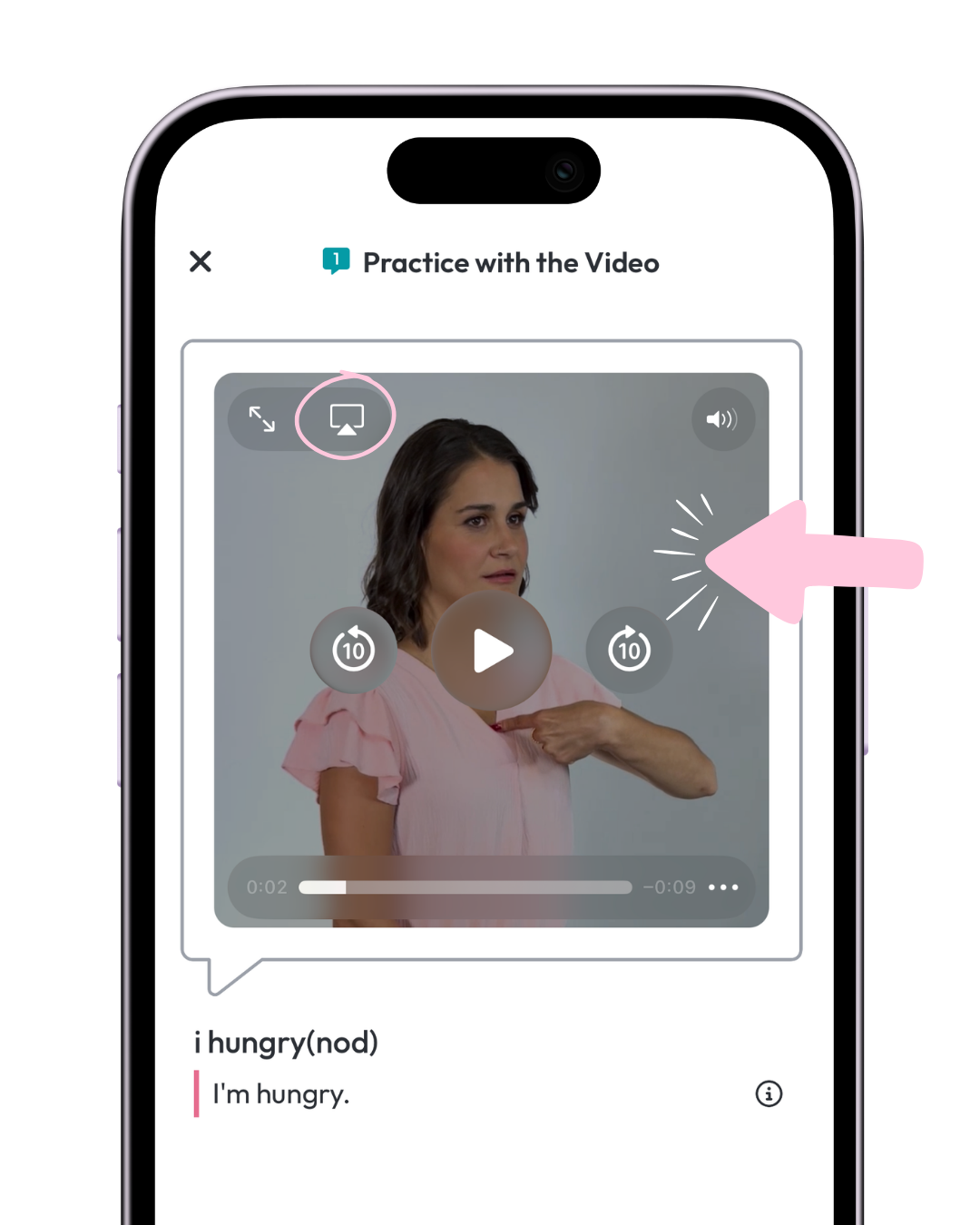
- Open your ASL Practice Session.
- Tap the video so the video controls appear.
- Tap the screen / AirPlay icon in the upper-left corner of the video.
- Choose your compatible TV or streaming device.
- Play the video from the app as usual.
The app will still track your Practice Session while the video plays on the TV, because you’re sending the video directly from the player inside the app.
Why should I use the video’s screen icon instead of mirroring my device?
If you mirror your entire phone or computer screen, the video may play on your TV, but the app may not always recognize that the video was completed.
The same can happen if you try to use a TV’s web browser or cast the entire webpage from a computer.
For the best experience, use the screen / AirPlay option directly inside the ASL video player.
I don’t see the screen icon
Tap the video first so the playback controls appear.
If you still don’t see it, your device, browser, TV, or streaming setup may not support that casting option.
You can still practice directly on your phone, tablet, or computer.