
How do I start where I left off in the new app?
This article is only for families who started TalkBox.Mom before September 7, 2026 and want to log progress they made before using the new app.
If you’re starting TalkBox.Mom for the first time, you can skip this article.
1. Choose whether you want to log your past Focus Phrases

If you started TalkBox.Mom before September 7, 2026, after you select your language, the app will ask:
Do you want to log your past Focus Phrases?
Note: You’ll log progress for each language separately. The Tours, Challenges, and Focus Phrases you enter here should only be for the language you just selected. When you switch to another language later, you’ll be able to log that language’s progress too.
Choose:
- Yes, log my Past Focus Phrases if you want your previous progress reflected in the app.
- No, start fresh! if you want to begin the language journey from the beginning.
2. Tell us whether you’ve gone through any Boxes more than once
Next, the app asks whether you’ve completed more than one Tour through any Box.
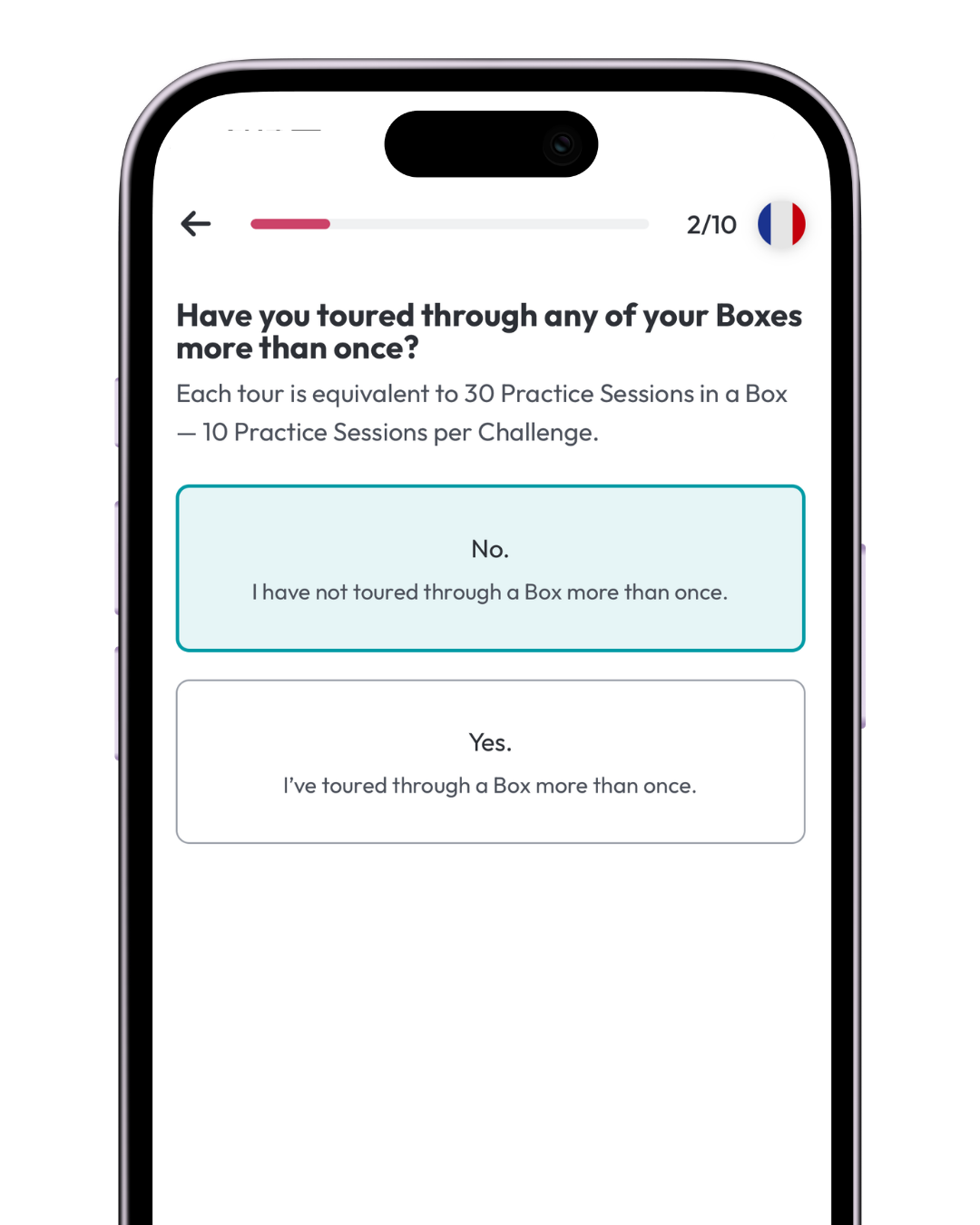
A Tour is 30 Practice Sessions in a Box — 10 Practice Sessions per Challenge.
If you haven’t toured through any Box more than once, choose No and continue to Step 3.
If you’ve toured a Box more than once, enter how many Tours you completed for that Box.
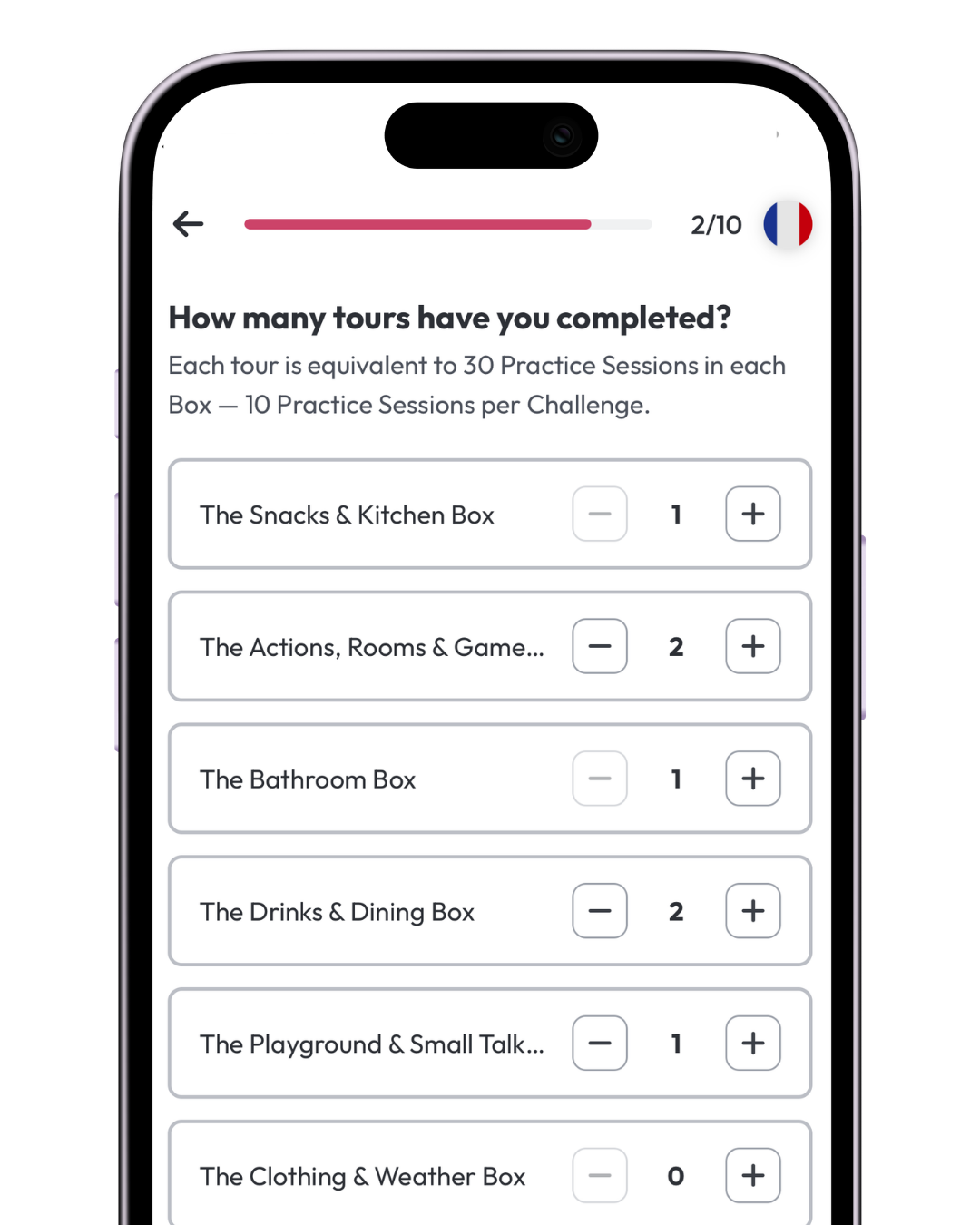
Tours need to follow your Box order. You can repeat earlier Boxes as many times as needed, but you can’t record progress in a later Box unless the Boxes before it have each been completed at least once.
Why does this matter?
The app creates a Review Set for each Challenge in each Tour you record. Before a Weekly Review, you’ll be able to quickly add 10–20 phrases you practiced in that Challenge so they’re ready to review.
If you skipped Boxes or Challenges in the past: choose the progress that best matches the consecutive path you’ve actually completed. Don’t count a later Box as toured if earlier Boxes weren’t completed in order.
If you’re unsure which starting point best matches your progress, choose the closest consecutive point and continue from there.
3. Select the Challenge you’re currently working on
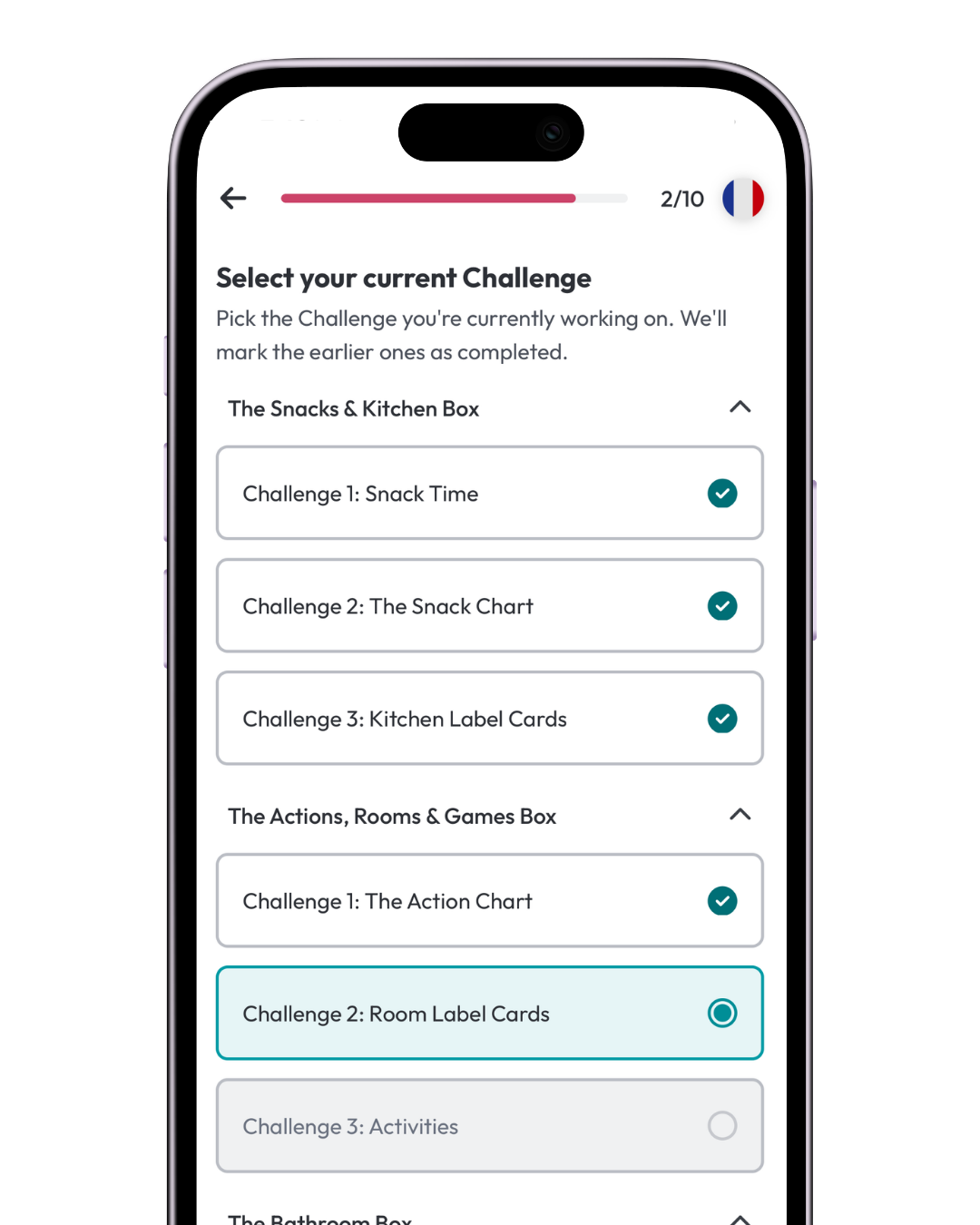
Choose your current Challenge.
The app will mark the consecutive Challenges before it as completed so your roadmap reflects where you are now.
For each completed Challenge, the app will create a Review Set. Before a Weekly Review, you’ll be able to quickly add 10–20 phrases you practiced in that Challenge so they’re ready to review.
4. Select the Practice Session you’re on
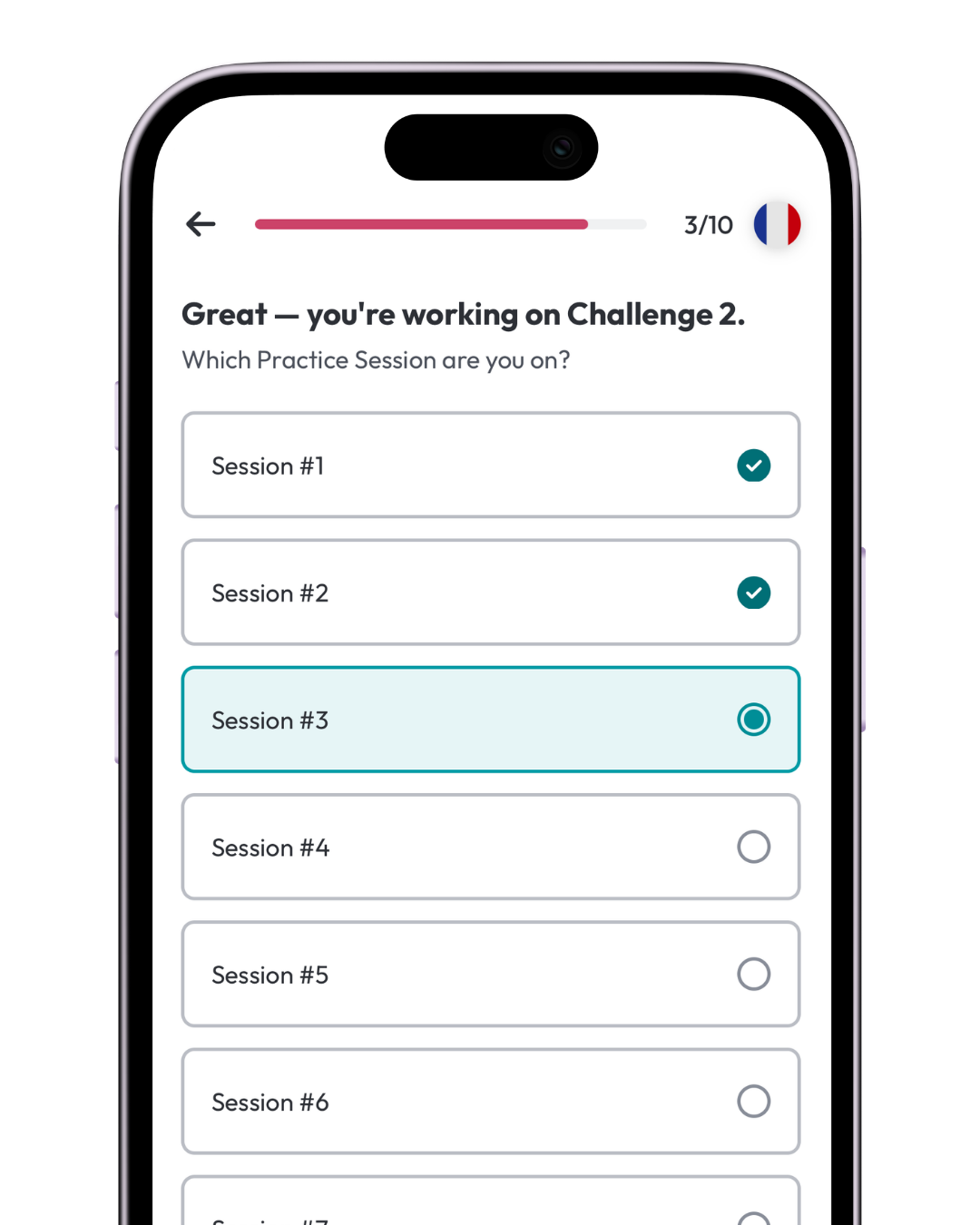
Choose the Practice Session that best matches your current progress in that Challenge.
Each Practice Session can include 1–2 Focus Phrases.
If you already know which Practice Session you’re on, select it.
If you don’t know, you can use the number of phrases you’ve practiced to choose a starting point. For example, if you’ve practiced 4 phrases, you can start with Practice Session #5 and record those four phrases in the earlier Practice Sessions.
5. Tell us where you are in that Practice Session
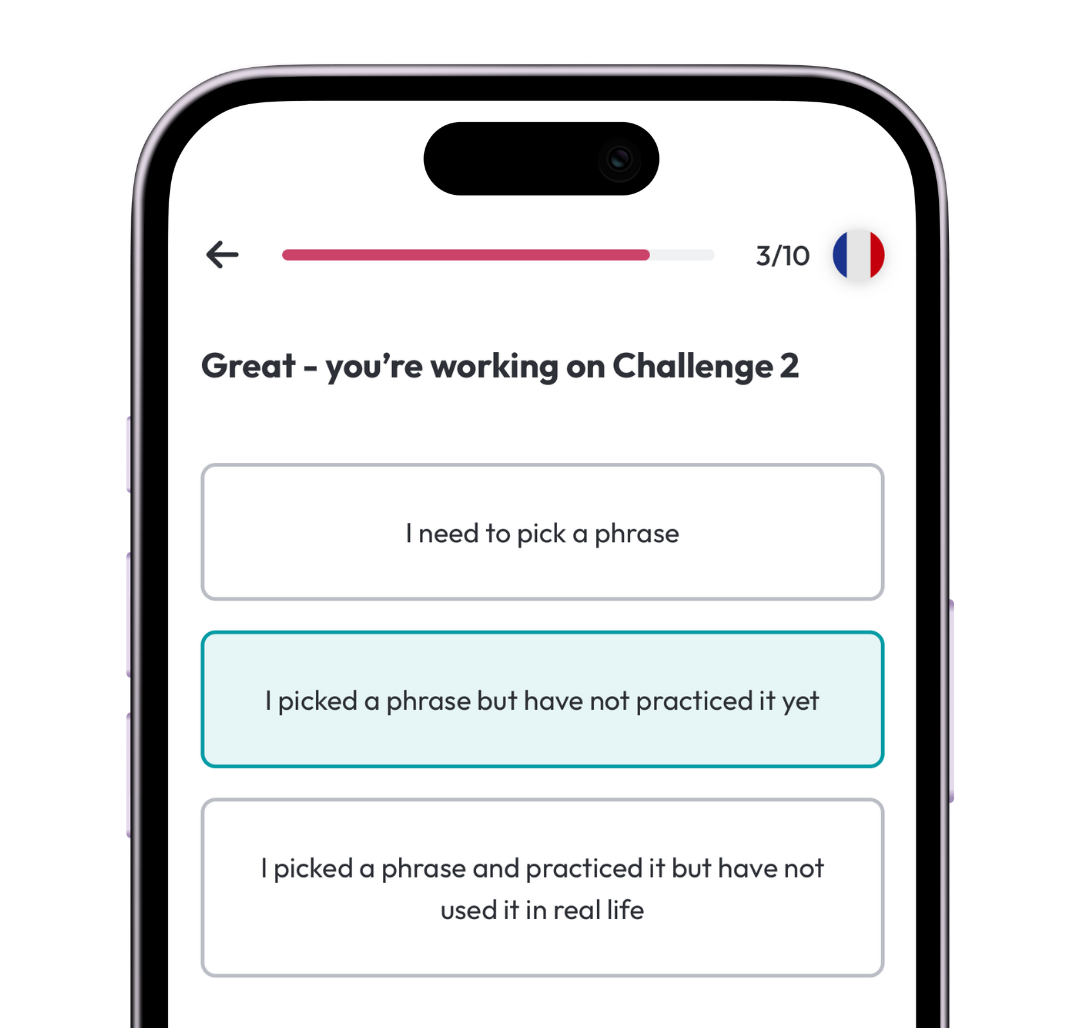
The app will ask which of these best describes where you are:
- I need to pick a phrase.
After you confirm your location, you’ll choose your Focus Phrase. - I picked a phrase, but have not practiced it yet.
You’ll add that phrase now, then continue with the Practice Session. - I picked a phrase and practiced it, but we have not used it in real life.
That phrase will show as practiced on your home screen. Once you use it in real life, you’ll unlock your next Practice Session.
Choose the option that best matches where you are right now.
6. Add the Focus Phrases you practiced in earlier Practice Sessions
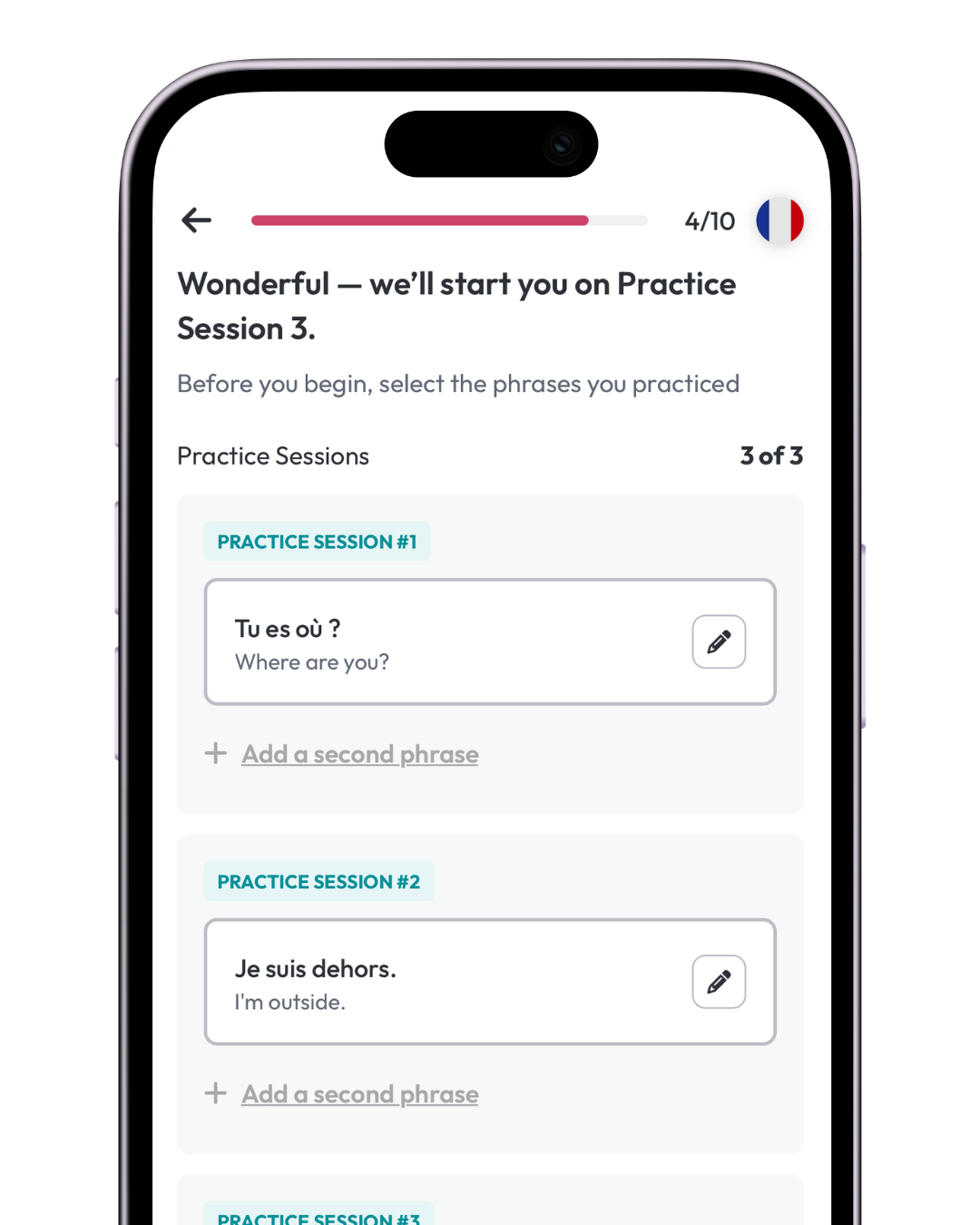
If you chose to log your past Focus Phrases, the app will let you add the phrase you practiced for each earlier Practice Session.
You can also add a second phrase when applicable.
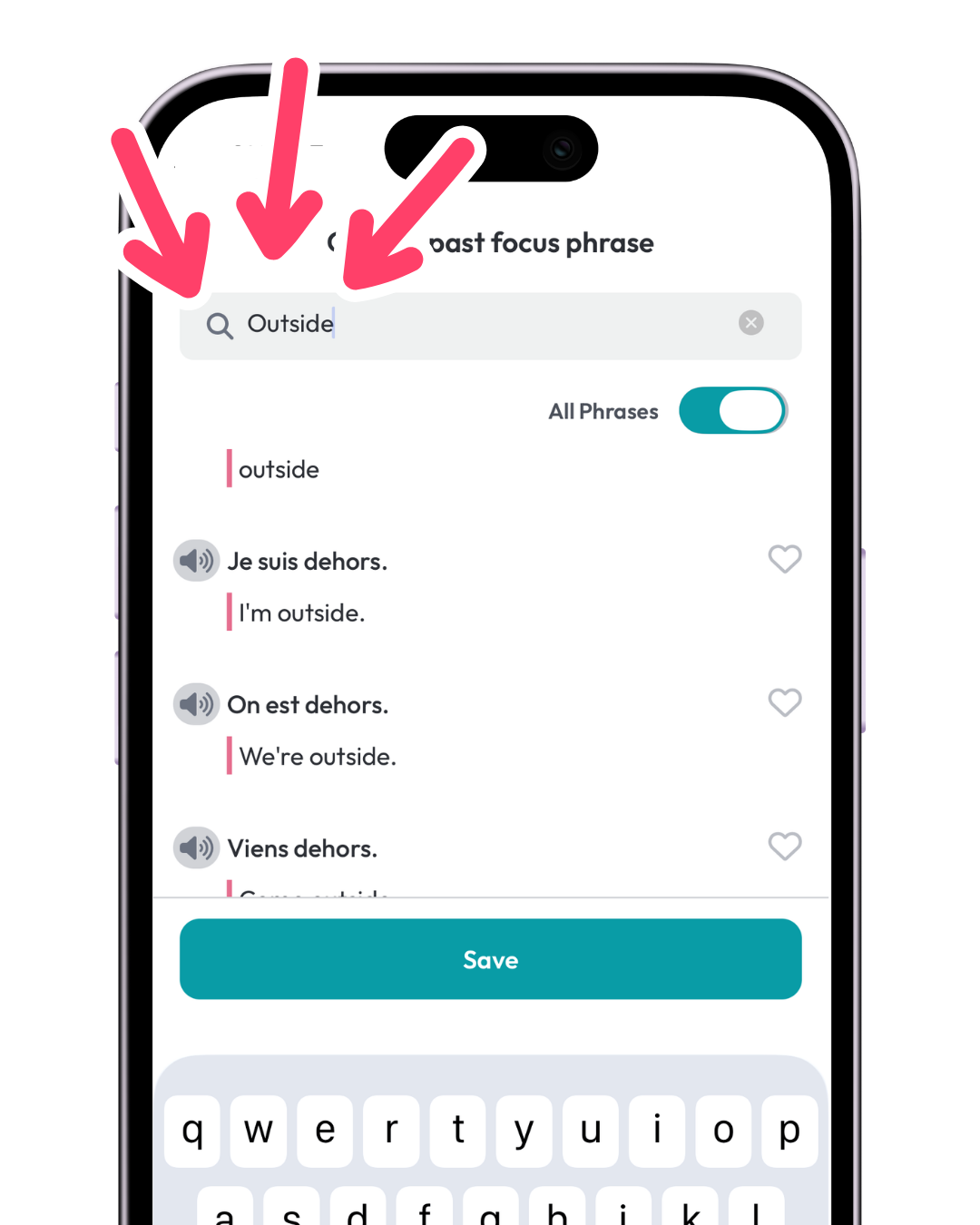
Use the search bar to find your phrase instead of scrolling through the full list.
Search works well with a keyword from the phrase.
If a search with an apostrophe doesn’t return the phrase you expect, try searching with another keyword from the phrase.
7. Confirm your progress
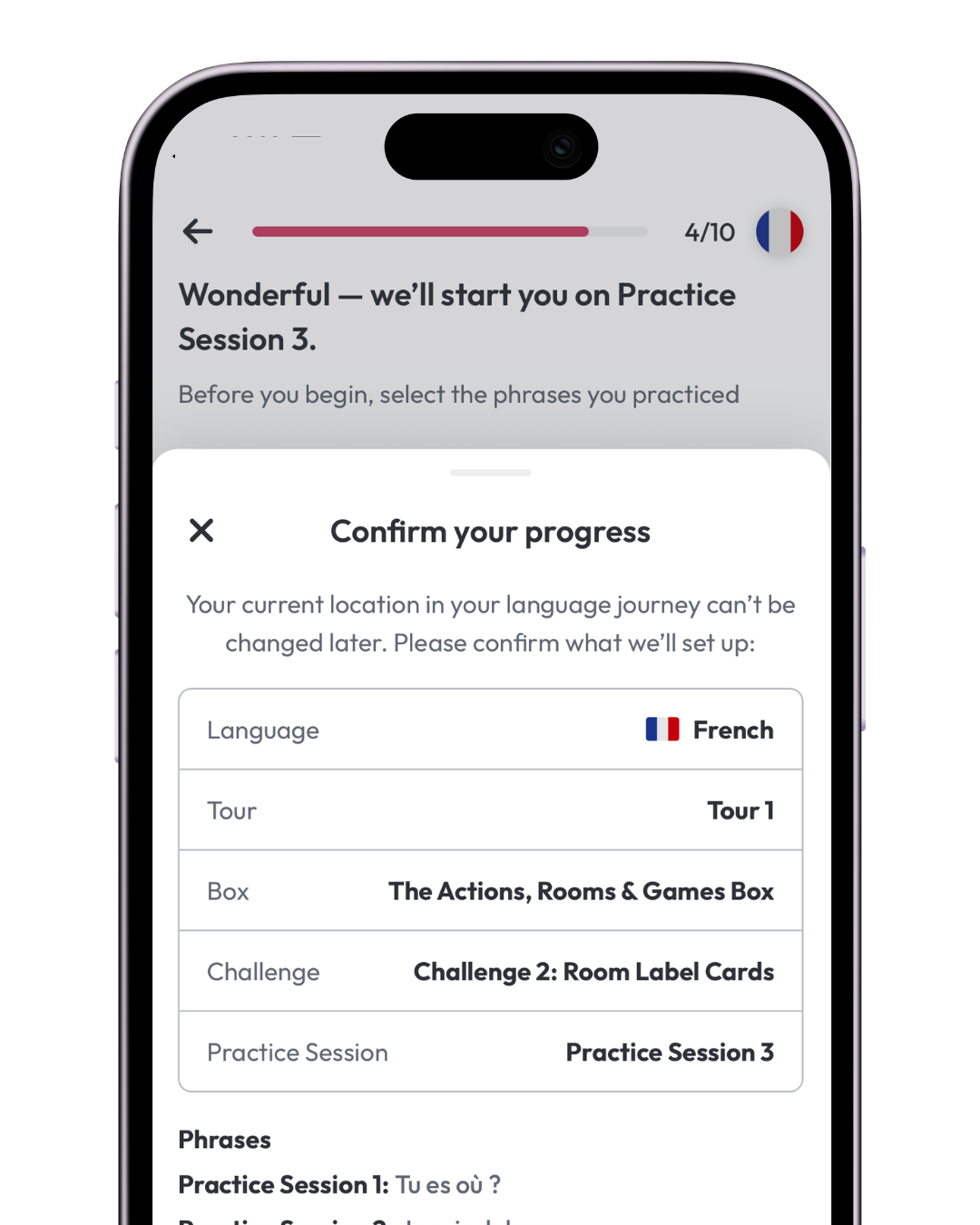
Before saving, review your:
- Tour
- Box
- Challenge
- Practice Session
- Past Focus Phrases
Then tap Accept.
Your starting location in your language journey can’t be altered after you confirm it, so double-check your selections before continuing.
If you accidentally confirm the wrong starting location, email us at support@talkbox.mom and we can reset your progress so you can set it up again.